
Over the past year, we’ve brought Quarch Power Studio (QPS) to macOS to support our growing community of Mac users. We know you want a smooth, hassle-free experience, so we’ve put together this quick guide to make setup as simple as possible.
Here’s how to complete the one-time macOS security step and get straight to work.
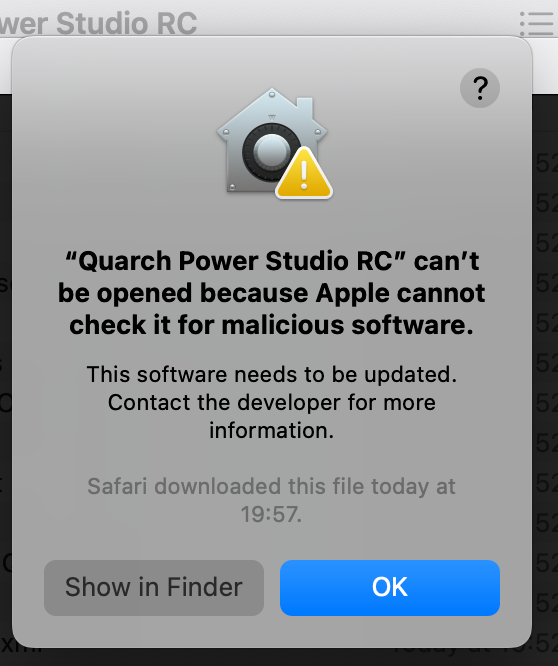
The first time you open Quarch Power Studio (QPS) on a Mac, macOS may block it with a security warning. This is expected, and it takes about a minute to fix. You only need to do it once per installation.
The warning looks like this: “Quarch Power Studio” can’t be opened because Apple cannot check it for malicious software.
MacOS shows this message for any app that hasn’t been through Apple’s notarisation service. It doesn’t mean anything is wrong with QPS. The steps below tell your Mac that you trust the app, and after that it opens normally.
Step 1: Install QPS
- Download the macOS installer from the Quarch website.
- Open the downloaded
.dmgfile. - Drag Quarch Power Studio into your Applications folder.
- Double-click the app in Applications to open it.
If QPS opens, you’re done. If you see the security warning, click OK (or Done) and follow Step 2 for your version of macOS. To check your version, open the Apple menu and choose About This Mac.
Step 2 – Easy Option: use Terminal
If you’re comfortable with Terminal, one command does the same job on any macOS version. It removes the “downloaded from the internet” flag that triggers the warning.
- Open Terminal (in Applications > Utilities).
- Type the following, including the space at the end. Don’t press Enter yet.
sudo xattr -rd com.apple.quarantine
- Drag Quarch Power Studio from your Applications folder into the Terminal window. This fills in the correct path for you.
- Press Enter, then type your Mac password and press Enter again. Nothing appears on screen as you type the password; this is normal.
- Open QPS as usual.
If QPS is installed in Applications under its standard name, you can paste this instead:
sudo xattr -rd com.apple.quarantine /Applications/Quarch*.app
Step 2 – macOS 15 Sequoia or newer: use Open Anyway
- Try to open QPS once, as in Step 1, and dismiss the warning.
- Open the Apple menu and choose System Settings.
- Click Privacy & Security in the sidebar.
- Scroll down to the Security section. You’ll see a message that “Quarch Power Studio” was blocked.
- Click Open Anyway.
- Enter your Mac password (or use Touch ID) when asked.
- In the dialog that follows, click Open Anyway again.
QPS now opens, and it will open normally from now on.
Tip: the Open Anyway button only appears for about an hour after the blocked attempt. If you can’t see it, open QPS again to trigger the warning, then return to Privacy & Security.
Step 2 – macOS 14 Sonoma or older: use Control-click
- Open Finder and go to your Applications folder. Don’t use Launchpad for this step.
- Hold Control and click Quarch Power Studio (or right-click it).
- Choose Open from the menu.
- In the warning dialog, click Open.
Your Mac saves QPS as a trusted app, so you can double-click it as usual from now on. The Open Anyway method from the previous section also works on these versions.
Troubleshooting and FAQ
Q: I can’t see the Open Anyway button.
A: Open QPS once to trigger the warning, then go straight to Privacy & Security. The button disappears about an hour after the blocked attempt.
Q: Terminal says “No such file or directory”.
A: The app name or location doesn’t match the command. Use the drag-and-drop method in the Terminal section, which always gets the path right.
Q: Terminal says “Operation not permitted”.
A: Your account may not have administrator rights, or your Mac may be managed by your company. Ask your IT team to approve the app, or use the Open Anyway method with an administrator’s password.
Q: Do I need to do this again after updating QPS?
A: Yes, once for each new version you download and install.
Q: Is it safe?
A: Only approve apps you downloaded directly from the Quarch website. If you’re unsure, or the steps above don’t work, contact Quarch support and we’ll help you get set up.

Stuart Boon